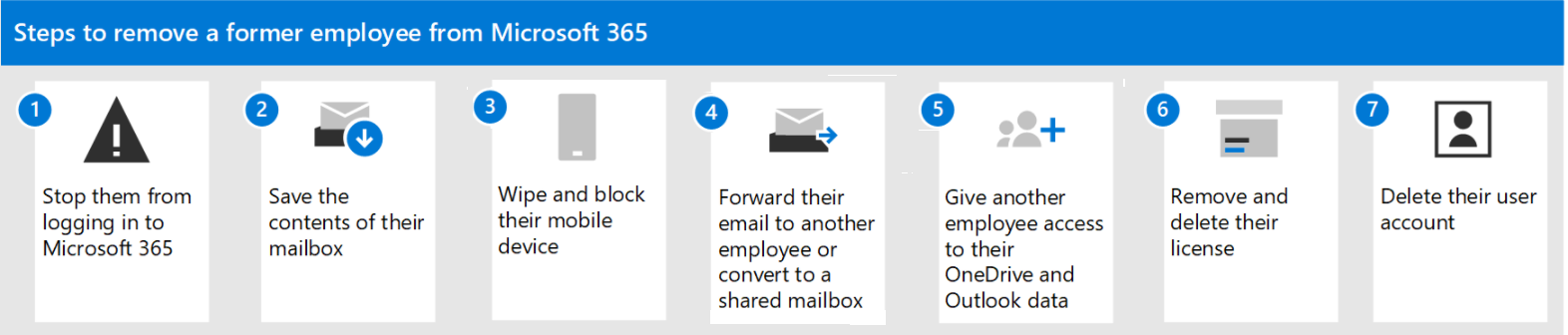
Although we've numbered the steps in this solution and you don't have to complete the solution using the exact order, we do recommend doing the steps this way.
This lets you keep the former employee's email address active. If you have customers or partners still sending email to the former employee's address, this gets them to the person taking over the work.
If you only remove a user's license but don't delete the account, the content in the user's OneDrive will remain accessible to you even after 30 days.
Before you delete the account, you should give access of their OneDrive and Outlook to another user. After you delete an employee's account, the content in their OneDrive and Outlook is retained for 30 days. During that 30 days, however, you can restore the user's account, and gain access to their content. If you restore the user's account, the OneDrive and Outlook content will remain accessible to you even after 30 days.
When you remove a license, you can assign it to someone else. Or, you can delete the license so you don't pay for it until you hire another person.
When you remove or delete a license, the user's old email, contacts, and calendar are retained for 30 days, then permanently deleted. If you remove or delete a license but don't delete the account, the content in the user's OneDrive will remain accessible to you even after 30 days.
- How to: Exchange 2016 to Office 365 Hybrid Migration - Step-by-Step https://community.spiceworks.com/how_to/177811-exchange-2016-to-office-365-hybrid-migration-step-by-step
- Methods for Migrating to Office 365 https://practical365.com/methods-for-migrating-to-office-365/
- Preparing for Hybrid Deployment with Exchange and Office 365 https://practical365.com/preparing-for-hybrid-deployment-with-exchange-office-365/
- Creating a Hybrid Configuration with Exchange and Office 365 https://practical365.com/creating-hybrid-configuration-exchange-office-365/
- How to Set Up a Hybrid Office 365 and Migrate to Exchange Online https://blog.netwrix.com/2019/01/03/how-to-set-up-a-hybrid-office-365-and-migrate-to-exchange-online/
- Migration from onPremise to Office 365 https://blog.matrixpost.net/migration-from-exchange-and-skype-for-business-onpremise-to-office-365-exchange-hybrid-classic-full-step-by-step/
In Microsoft Outlook, you can easily send a schedule recurring appointment, meeting or task to others. But if you just want to send a schedule recurring email without any appointment, meeting or task, how can you do? Unfortunately, Outlook provides no feature for sending schedule recurring email, but in our tutorial, we will show you how to send a schedule recurring email with or without attachments in Outlook.
5 Steps total
Step 1: Create a new appointment
1. Please navigate to the Calendar view by clicking Calendar in the Navigation Pane, and then create a new appointment by clicking New Appointment under Home tab.
2.. In the Appointment dialog under Appointment tab. You need to:
A: Type in the Subject
B: Enter the recipients’ email addresses in the Location (email must be enclosed between "<>" and separated by ";")
C: Configure the Start time and the End time
D: Select the reminder under the Reminder drop-down list.
If you choose 15 minutes, it means it will remind you 15 minutes early when the email is sent.
E: Compose your Appointment body.
Note: The Appointment Subject will become the recurring email subject; and the Appointment body will become the recurring email body when the recipients received the email.
Step 2: Create a new category
Now you need to create a new category named “Send Schedule Recurring Email” as follows:
1. In the Appointment dialog, please click Categorize > All Categories in the Tags group under Appointment tab.
2. When the Color Categories dialog popping up, please click New button. In the Add New Category dialog, type “Recurring Email” in the Name field; and then choose a color in the Color drop-down list. Then click OK.
3. Then you will see the “Recurring Email” category is listed out, please check the box, and then click OK button.
Step 3: Set the Recurrence
Now, it is time to set the recurrence for the appointment.
1. Click Recurrence in the Options group under Appointment tab.
2. In the Appointment Recurrence dialog, configure your Recurrence pattern. If you need an end time, please configure it under Range of recurrence. And then click OK.
3. When it returns to the Appointment dialog, please click Save & Close button.
Step 4: Use the VBA code for sending the Schedule Recurring Email
1. Please press Alt + F11 to open the Microsoft Visual Basic for Applications dialog.
2. Double click on Project1 > Microsoft Outlook Object > ThisOutlookSession in the left pane.
3. Copy and paste the following VBA code (below) to the VBA editor. And then click Save button.
Private Sub Application_Reminder(ByVal Item As Object)
Dim objMsg As MailItem
Dim objApp As AppointmentItem
Dim Att As Attachment
Dim tmpFolder As String
Dim filePath As String
Set objMsg = Application.CreateItem(olMailItem)
If Item.MessageClass <> "IPM.Appointment" Then
Exit Sub
End If
If Item.Categories <> "Recurring Email" Then
Exit Sub
End If
tmpFolder = Environ("TEMP")
For Each Att In Item.Attachments
filePath = tmpFolder & "\" & Att.FileName
Att.SaveAsFile (filePath)
objMsg.Attachments.Add filePath
Kill filePath
Next Att
objMsg.To = Item.Location
objMsg.Subject = Item.Subject
objMsg.Body = Item.Body
objMsg.Send
Set objMsg = Nothing
End Sub
Step 5: Enable Macros
You must enable the Outlook macros.
Step 1: Click the File > Options.
Step 2: In the Outlook Options dialog box, click the Trust Center in the left bar.
Step 3: Click the Trust Center Settings button.
Step 4: In the Trust Center dialog box, click the Macro Settings in the left bar.
Step 5: In the Macro Settings section:
To enable all macros, please check the Enable all macros (not recommended; potentially dangerous code can run) option.
To disable all macros in your Microsoft Outlook, please uncheck the Enable all macros (not recommended; potentially dangerous code can run) option.
Step 6: Click OK buttons in each dialog box.
Step 7: Restart your Microsoft Outlook 2010 or 2013 to activate it.
When the Reminder popping up, the email will be automatically sent to the recipients which you have typed in the Location field in the first part. Then click Dismiss in the Reminder dialog. And the email will be sent recurring every day in this time.
QUESTION:
Hello,
I have a DBF file an I need to open it. I have VFP9.0 and when I try to open it I get a message suc as:
"Memo file C:\....\myfile.fpt is missing or is invalid."
Is there a way to open this file?
ANSWER:
You might also recover your memo file if problem is in next memo block pointer (get a backup and use at your own risk - yani sorumluluk kabul etmem:)
close data all
m.lcDBF = "c:\mypath\myTable.dbf"
RepairMemo(Forceext(m.lcDBF,'FPT'))
Function RepairMemo
* RepairMemo
* Simply fixes next block pointer, blocksize and filesize
Lparameters tcMemoFilename
Local handle, lnFileSize, lnNextBlockPointer, lnBlockSize, lnFirstBlock, lnCalculatedFileSize
handle=Fopen(tcMemoFilename,12) && Opened readwrite
lnFileSize = Fseek(handle,0,2) && Get file size
With This
* Read header info
lnNextBlockPointer = ReadBytes(handle, 0,4,.T.) && Stored in left-to-right format
lnBlockSize = ReadBytes(handle, 6,2,.T.) && Stored in left-to-right format
* Specific to me - no blocksize setting to something other than default 0x40
If lnBlockSize # 0x40
WriteBytes(handle, 6,2,0x40,.T.)
lnBlockSize=0x40
Endif
*
lnFirstBlock = Ceiling(512/lnBlockSize) && Possible min lnNextblockpointer
lnCalculatedFileSize = lnNextBlockPointer*lnBlockSize
* Fix if needs repair
If !(lnFileSize >= 512 ;
and lnNextBlockPointer >= lnFirstBlock ;
and lnCalculatedFileSize >= lnFileSize) && Memo needs repair
lnNextBlockPointer = Max(lnNextBlockPointer, lnFirstBlock)
lnFileSize = lnNextBlockPointer * lnBlockSize
WriteBytes(handle, 0,4,lnNextBlockPointer,.T.) && Fix next block pointer
=Fchsize(handle, lnFileSize) && Fix filesize
Endif
Endwith
=Fclose(handle)
Function WriteBytes
Lparameters tnHandle, tnPos, tnSize, tnNumber, tlLR
Local lcString, lnLowDword, lnHighDword,ix
lcString=''
If tlLR
For ix=tnSize-1 To 0 Step -1
lcString=lcString+Chr(tnNumber/256^ix%256)
Endfor
Else
For ix=0 To tnSize-1
lcString=lcString+Chr(tnNumber/256^ix%256)
Endfor
Endif
=Fseek(tnHandle, tnPos,0) && Go to pos
Return Fwrite(tnHandle,lcString)
Function ReadBytes
Lparameters tnHandle, tnPos, tnSize, tlLR
Local lcString, lnRetValue,ix
=Fseek(tnHandle, tnPos,0) && Go to pos
lcString = Fread(tnHandle, tnSize) && Read tnSize bytes
lnRetValue = 0
For ix=0 To tnSize-1 && Convert to a number
lnRetValue = lnRetValue + Asc(Substr(lcString,ix+1)) * ;
iif(tlLR,256^(tnSize-1-ix),256^ix)
Endfor
Return Int(lnRetValue)
*!* **Code****
Local oOutlookObject,olNameSpace
#Define olFolderInBox 6
oOutlookObject = Createobject('Outlook.Application')
olNameSpace = oOutlookObject.GetNameSpace('MAPI')
oItems= olNameSpace.GetDefaultFolder(olFolderInBox).Items
For Each loItem In oItems
If loItem.unRead
**Do something here
loItem.unRead = .F. &&
Mark it as read
Endif
Next
Retrieve appointements in Outlook's calendar
*!* **Code****
CREATE CURSOR myCursor (start T,end T,body c(250))
LOCAL oOutlook,oNameSpace,oDefaultFolder
oOutlook = CREATEOBJECT('outlook.application')
oNameSpace = oOutlook.getnamespace('MAPI')
oDefaultFolder=oNameSpace.GetDefaultFolder(olFolderCalendar)
oItems = oDefaultFolder.items
FOR EACH oItem IN oItems
INSERT INTO myCursor (start,end,body) VALUES (oItem.start,oItem.end,oItem.body)
ENDFOR
SELECT myCursor
BROWSE
Delete an appointment
*!* **Code****
#DEFINE olFolderCalendar 9
LOCAL oNameSpace, oDefaultFolder,oItems
oOutlook = CreateObject("Outlook.Application")
oNameSpace = oOutlook.GetNameSpace("MAPI")
oDefaultFolder = oNameSpace.GetdefaultFolder(olFolderCalendar)
FOR EACH oItem IN oDefaultFolder.items
IF oItem.Subject = 'All day meeting'
lDelete = oItem.Delete
ENDIF
ENDFOR
WITH oEmailItem
.Recipients.Add('moe@3stooges.com') && uses the
Recipients collection
.Subject = 'Automation sample'
.Importance = IMPORTANCENORMAL
.Body = 'This is easy!'
.Attachments.Add('c:\mydir\sample.txt') && Note that
the fully qualified path and file is required.
.Send
ENDWITH
*!* **Code****
Local lcFilename,lcPath
lcPath='c:\savedattachments\'
If !Directory('c:\savedAttachments')
Md 'c:\savedAttachments' && Create the
directory if it doesn't exist.
Endif
oOutLookObject = Createobject('Outlook.Application')
olNameSpace = oOutLookObject.GetNameSpace('MAPI')
myAtts=olNameSpace.GetDefaultFolder(olFolderInbox).Items
For Each loItem In myAtts
If loItem.attachments.Count >0 && Make sure
there is an actual attachment.
For i = 1 To
loItem.attachments.Count
lcFilename='
lcFilename
= loItem.attachments.Item(i).filename
lcFilename
= Alltrim(lcPath)+lcFilename
loItem.attachments.Item(i).SaveAsFile(lcFilename)
*loItem.Delete()
&& The option to delete the message once the attachment has been saved.
Next
Endif
Next
How to change (edit) information in the Contacts folder
*!* **Code****
LOCAL oOutlook,oNameSpace,oDefaultFolder,oItems
oOutlook = CREATEOBJECT('outlook.application')
oNameSpace = oOutlook.GetNameSpace('mapi')
oDefaultFolder = oNameSpace.GetDefaultfolder(olFolderContacts)
oItems=oDefaultFolder.items
FOR EACH loItem IN oItems
IF loItem.FULLNAME = 'Mis'
loItem.Email1Address = 'mis@suntel.ca'
loItem.Save()
ENDIF
ENDFOR
Adding a folder in Outlook
*!* **Code****
Local oOutlook,oNameSpace,oNewFolder
oOutlook=CREATEOBJECT('outlook.application')
oNameSpace=oOutlook.GetNamespace('mapi')
oNewFolder=oNameSpace.Folders(2).Folders.Add('myNewFolder') && This will create a folder in the
Personal folders' directory of Outlook.
How to find the names of the folders within the inbox folder
*!* **Code****
#DEFINE olFolderInBox 6
Local oOutlook,oNameSpace,oDefaultFolder
oOutlook=CREATEOBJECT('outlook.application')
oNameSpace=oOutlook.GetNamespace('mapi')
oDefaultFolder =oNameSpace.Getdefaultfolder(olFolderInBox)
oFolders=oDefaultFolder.folders
FOR EACH oFolder IN oFolders
?oFolder.name
ENDFOR
Moving messages from the Inbox to another folder
The trick is
to determine the folder ID number of your 'Seen' folder, once you have
determined that (Typically the folder ID number is in order of creation, for
example I just created a folder called 'seen' and determined that the folder
was the 12th folder to be created) , that following will do it for you, it will
move all Read messages to the folder number 12.
*!* **Code****
Local oOutlookObject,olNameSpace
#Define olFolderInBox 6
oOutlookObject = Createobject('Outlook.Application')
olNameSpace = oOutlookObject.GetNameSpace('MAPI')
oItems= olNameSpace.GetDefaultFolder(olFolderInBox).Items
For Each loItem In oItems
If !loItem.unRead
loitem.Move(olNameSpace.Folders(1).Folders(12))
Endif
Next
How to determine when new mail has arrived using BindEvents
You can use
the following code to create a COM server
DLL and take action when a new e-mail arrives in Outlook. Please note that only
the NewMail procedure is functional, but you can add your own code to make the
others functional.
Note: this code is based on
http://msdn.microsoft.com/library/default.asp?url=/library/en-us/dnfoxtk00/html/ft00j1.asp
Note2 : This code requires that VFPCOM Utility be installed in the target
computer
(http://www.microsoft.com/downloads/details.aspx?displaylang=en&FamilyID=1529819C-2CE8-4E89-895E-15209FCF4B2A)
Note3 : This will work in VFP7.0 and up
*!* **Code****
#Define VFPCOM_CLSID'VFPCOM.COMUTIL'
#Define OUTLOOK_CLSID'OUTLOOK.APPLICATION'
Public goVFPCOM, goOutlook, goLink
goVFPCOM = Create(VFPCOM_CLSID)
goOutlook = Create(OUTLOOK_CLSID)
goLink = Create('OutlookApplicationEvents')
goVFPCOM.BindEvents(goOutlook, goLink)
Define Class OutlookApplicationEvents As Custom Procedure ItemSend(Item,Cancel) Endproc Procedure NewMail Messagebox('New Mail Has
Arrived') Endproc Procedure OptionsPagesAdd(Pages) Endproc Procedure Quit Endproc Procedure Reminder(Item) Endproc Procedure Startup Endproc
Enddefine
Ever tried to close your application, only to be told you can't? Here's the story.
You've developed your application and handed it to the user. Everything is fine. Then you get a phone call. The user tried to close the app, but all that happened was that a message appeared: "Cannot quit Visual FoxPro" (see Figure 1). Why? Because the application is still in an event loop.
Figure 1: The dreaded Cannot Quit message
Somewhere in the app's controlling logic, you have code that looks like this:
DO MainMenu.MPR
READ EVENTS
Once the program has been put in an event loop (which is what READ EVENTS does), you won't be able to close down until you have exited the event loop. You do that with the CLEAR EVENTS command. You would normally execute CLEAR EVENTS whenever the user signals that they want to close the application – in the Exit command from the File menu, for example.
But what if the user tries to close the application by clicking on the Close box in the title bar? Or by shutting down Windows itself while the application is still running? In those cases, the program won't have had an opportunity to execute CLEAR EVENT. The event loop is still active, so the Cannot Quit message appears.
To avoid this, use the ON SHUTDOWN command. This works in the same way as VFP’s other "On" commands, such as ON ERROR, in that it specifies an action which is to be taken when a certain event occurs. In this case, the event is any attempt to close the application, by whatever means.
So all you have to do is execute ON SHUTDOWN CLEAR EVENTS. You do this near the beginning of the program – in any case before the READ EVENTS. Once you have done that, the user should never again see the Cannot Quit message. When the user hits the Close box in the title bar, the program will execute the ON SHUTDOWN code, which in turn will exit the event loop and pass control to the code following the READ EVENTS. End of problem.
Nothing happens
Well, not quite. Now try running the app from the VFP development environment. Close the app. Then try to quit Visual FoxPro. It makes no difference whether you use the File Exit command, click on the Close box or type QUIT in the Command Window. The result is the same: nothing happens.
Why? Because the ON SHUTDOWN command is still in effect. Instead of closing down, VFP is merely executing a CLEAR EVENTS, which has no effect if you are in the development environment and there is no program running.
To avoid this, go back to the app, and add another ON SHUTDOWN command. This time, make it simply ON SHUTDOWN by itself. Put this in the clean-up code, that is, somewhere after the READ EVENTS. The effect will be to cancel the original ON SHUTDOWN.
This pair of commands – ON SHUTDOWN CLEAR EVENTS and ON SHUTDOWN by itself – are the minimum you need to close down gracefully. But, depending on how the app is structured, you might need to do more.
Cleaning up
In our own applications, the File Exit command performs a certain amount of cleaning up before it issues its CLEAR EVENTS. Specifically, it iterates through the collection of open forms (that is, the Forms collection in _SCREEN), closing each form in turn. As it does so, it prompts the user to deal with any unsaved edits. At that point, the user can decide to cancel the shut-down, in which case the exit routine will leave the relevant form open and refrain from clearing the event loop.
The application needs to go through this same procedure no matter how the user tries to close down. To achieve this, we put the above processing in a procedure, which we call FileExit. The Exit command on the File menu calls this procedure with a simple DO FileExit. And so does the ON SHUTDOWN command. In other words, instead of executing ON SHUTDOWN CLEAR EVENTS, we execute ON SHUTDOWN DO FileExit. That way, the shut-down procedure is always the same, whatever the user did to initiate it.
We can create an Excel object in VFP and use all the methods and properties of Excel class to manipulate Excel file.
In the main program, create an ExcelPlus object: SET PROCEDURE TO ExcelPlus
oExcel = CREATEOBJECT("ExcelPlus") oExcel.StartExcel
Then, include file ExcelPlus.prg in the project. ExcelPlus.prg defines a class, ExcelPlus, which is an inheritance of class Excel.Application in VBA, so class ExcelPlus can access all the methods and properties of class Excel.Application in VBA. New customized methods can also be easily created in ExcelPlus.prg.
PROTECTED AddressLo, AddressHi, MaxCol, MaxRow, oExcel, oWorkbook, DATASESSION HIDDEN CurrentColLo, CurrentColHi * exposed properties CurrentCell = [A1] CurrentCol = [A] CurrentRow = 1 CurrentSheet = [Sheet1] ExcelVisible = .F. NewSheets = 1 ErrorCode = 0 ErrorMsg = [Okay] * protected properties AddressLo = [ABCDEFGHIJKLMNOPQRSTUVWXYZ] AddressHi = [ ABCDEFGHI] MaxCol = [IV] MaxRow = 65536 oExcel = .NULL. oWorkbook = .NULL. DATASESSION = 1 * hidden properties CurrentColHi = 1 CurrentColLo = 1 ********************************************** PROCEDURE ErrorStatus(tnErrornumber) DO CASE * informational messages CASE tnErrornumber = OKAY THIS.ErrorMsg = [Okay] CASE tnErrornumber = EXCELSTART THIS.ErrorMsg = [Excel object instanciated.] CASE tnErrornumber = EXCELSTOP THIS.ErrorMsg = [Excel object destroyed.] CASE tnErrornumber = NULLDATA THIS.ErrorMsg = [Excel returned a NULL. Converted to space.] CASE tnErrornumber = UNKNOWNALIGNMENT THIS.ErrorMsg = [Unknown cell alignment. No cell alignment set.] CASE tnErrornumber = UNKNOWNORIENTATION THIS.ErrorMsg = [Unknown page orientation. No orientation set.] CASE tnErrornumber = BADPAGEMARGIN THIS.ErrorMsg = [Page margin less than 0. No margins set.] CASE tnErrornumber = ITEMNOTFOUND THIS.ErrorMsg = [Item not found prior to set limit.] CASE tnErrornumber = COLORNOTDEFINED THIS.ErrorMsg = [Color not defined in object.] * error messages CASE tnErrornumber = TOOFARRIGHT THIS.ErrorMsg = [Attempt to go right of column ] + THIS.MaxCol + [.] CASE tnErrornumber = TOOFARLEFT THIS.ErrorMsg = [Attempt to go left of column A.] CASE tnErrornumber = TOOFARUP THIS.ErrorMsg = [Attempt to go above row 1.] CASE tnErrornumber = TOOFARDOWN THIS.ErrorMsg = [Attempt to go below row ] + ALLTRIM(STR(THIS.MaxRow)) + [.] OTHERWISE THIS.ErrorMsg = [Unknown] ENDCASE THIS.ErrorCode = tnErrornumber * give the programmer a heads-up. IF tnErrornumber > 1000 WAIT WINDOW THIS.ErrorMsg ENDIF ENDPROC ********************************************** PROCEDURE StartExcel THIS.oExcel = CREATEOBJECT("Excel.Application") THIS.ErrorStatus(EXCELSTART) ENDPROC ********************************************** PROCEDURE StopExcel THIS.oExcel.QUIT() THIS.oExcel = .NULL. THIS.ErrorStatus(EXCELSTOP) ENDPROC ********************************************** PROCEDURE OpenSpreadSheet(tcPathName) THIS.oExcel.Workbooks.OPEN(tcPathName,.F.) THIS.oWorkbook = THIS.oExcel.ActiveWorkbook ENDPROC ********************************************** PROCEDURE SaveSpreadSheet(tcFileName,tcPassWord) IF PARAMETERS() = 1 tcPassWord = [] ENDIF
This.oExcel.DisplayAlerts = .F.
DO CASE CASE VAL(This.oExcel.Version) > 11 AND EMPTY(tcPassWord) THIS.oWorkbook.SaveAs(tcFileName+[.xls], 56) CASE VAL(This.oExcel.Version) > 11 THIS.oWorkbook.SaveAs(tcFileName+[.xls], 56, tcPassWord) CASE EMPTY(tcPassWord) THIS.oWorkbook.SaveAs(tcFileName+[.xls]) OTHERWISE THIS.oWorkbook.SaveAs(tcFileName+[.xls], tcPassWord) ENDCASE This.oExcel.DisplayAlerts = .T. RETURN ENDPROC ********************************************** PROCEDURE CloseSpreadSheet This.oExcel.DisplayAlerts = .F. This.oWorkbook.Close() && Unsaved changes will be discarded This.oExcel.DisplayAlerts = .T. *!* This.oWorkbook.Close RETURN ENDPROC ********************************************** PROCEDURE NewWorkBook WITH THIS.oExcel .SheetsInNewWorkbook = THIS.NewSheets THIS.oWorkbook = .Workbooks.ADD() ENDWITH ENDPROC ********************************************** PROTECTED PROCEDURE ExcelVisible_assign * automatically sets the visible * property of excel LPARAMETERS tlView THIS.ExcelVisible = tlView THIS.oExcel.VISIBLE = THIS.ExcelVisible ENDPROC ********************************************** FUNCTION GoToCell(tcCell) LOCAL lcCell lcCell = UPPER(tcCell) * check to see if we passed the limits * these limits are for hand entered * addresses programmatic addresses * are checked with the move methods IF THIS.Limits(lcCell) * navigate to a particular cell, * but if already there do nothing THIS.oExcel.RANGE(lcCell).SELECT IF THIS.CurrentCell # lcCell THIS.CurrentCell = lcCell ENDIF ENDIF * return error code established in * the limits check RETURN THIS.ErrorCode ENDFUNC ********************************************** FUNCTION GoToCol(tcCol) THIS.GoToCell(tcCol + ALLTRIM(STR(THIS.CurrentRow))) * return error code established in * the limits check RETURN THIS.ErrorCode ENDFUNC ********************************************** FUNCTION GoToRow(tnRow) THIS.GoToCell(THIS.CurrentCol + ALLTRIM(STR(tnRow))) * return error code established in * the limits check RETURN THIS.ErrorCode ENDFUNC
1. Control text format in Textbox and other input controls
InputMask Property
Specifies how users enter data and how to display data in a control. Available at design time and run time.
Format Property
Specifies the input and output formatting of a control's Value property. Available at design time and run time.
2. Move cursor to the right in a textbox This.SelStart = LEN(ALLTRIM(This.Value)) This.SelLength = 0
3. Multiple forms - Modal vs Modeless
Modal forms require user input. A modal form has exclusive focus until it is dismissed. When showing a modal form, the controls outside the modal form will not react until the modal form is closed. http://fox.wikis.com/wc.dll?Wiki~ModalvsModeless
The property "Desktop" of child form specifies whether a form can appear anywhere on the Windows desktop (if the value is .T.) or is contained in the parent form ( if the value is .F.). The default value is .F.
4. Prevents Visual FoxPro from inserting a key press into the keyboard buffer
Including NODEFAULT in the KeyPress event procedure or function prevents Visual FoxPro from inserting the key press into the Visual FoxPro keyboard buffer. Therefore, you can create a KeyPress procedure so that you can test which key is pressed before the key is sent to the keyboard buffer. https://msdn.microsoft.com/en-US/library/e525z4k3(v=vs.80).aspx
5. Print immediately
Put these two lines at the end of program:
In a Form, I have several textboxes that are validated against a table. The only logical way to set up the screen is for one of them to have the focus when you enter the form or after a save and ready for the next input (this textbox determines what all the rest have in them [e.g., the order number]). I also have a standard EXIT button which has Thisform.Release().
When I click the EXIT, the Valid() on the order field fires first and I must validate it before I can exit. My current work-around is to set the form's Key Preview on and check for ESCAPE and release.
How can I know in the Valid for order what event caused the valid to fire (i.e., the exit click) so I can conditionally skip the valid and let the form release?
I know I have seen this somewhere but can't remember.
Thanks,
==========================================
Answer:
There are a number of advantages of using an Exit button with the Cancel property set to .T. and checking for LastKey() = 27 in the Valid events of all of your control classes. One is that with Cancel set to .T. clicking the button is the same as pressing Escape so checking for 27 (Escape) as the LastKey() will tell you if the Exit button has been clicked. Secondly with Cancel set to .T. pressing Escape will click the button and fire its Click event thusly allowing you to give the user an expected functionality for the escape key.
In my control classes the beginning of the Valid event is;
IF LastKey() = 27
   Keyboard "{CTRL+A}"
   RETURN .T.
ENDIF
The keyboard of CTRL+A is to change the value of LastKey() from 27. This is because if the user clicks the exit button and then only uses the mouse, lastkey() will remain 27 until some other key is pressed. Doing the keyboard changes lastkey from 27 so the only way it can be 27 again is by pressing escape or clicking a button that has Cancel set to .T.
-When A Form Getting Loaded:
1. DataEnvironmet.openTables()
2. DataEnvironmet.beforeOpenTables()
3. Form.load()
4. [cursurs].Init() - for each cursor in DataEnvironment
5. DataEnvironment.init()
6. [controls].init() - for all controls in a form
7. Form.init()
8. Form.show()
9. Form.activate()
10. Form.refresh()
11. [object1].when() – for the first object in tab order
12. [object1].gotFocus() – for the first object in tab order
But In MSDN There Is A Slight Difference:
1. Form.init()
2. Form.activate()
3. [object1].when() – for the first object in tab order
4. Form.gotFocus()
5. [object1].gotFocus()
6. [object1].message()
-If We Leave An Object And The Next Object Gets The Focus:
Whenever An Object Gets The Focus The Sequence Of The Events Is As Below:
1. [object(i)].when()
2. [object(i)].gotFocus()
3. [object(i)].message()
And Whenever An Object Loses The Focus The Sequence Would Be:
1. [object(j)].valid()
2. [object(j)].lostFocus()
-If We Move To The Next Text Box From Currently Focused Text Box And Type Something In The Next Text Box:
1. Text(i).keyPress()
2. Text(i).valid
3. Text(i).lostFocus
4. Text(i+1).when()
5. Text(i+1).gotFocus()
-When We Type In A Text Box:
1. Text(i).keyPress()
2. Text(i).interactiveChange()
-When We Leave A Form By Calling Realease() Method (Closing The Form):
1. Form.queryUnload()
2. Form.destroy()
3. Form.[command buttons].destroy()
4. Form.[objects].destroy()
5. Form.unload()
6. DataEnvironment.afterCloseTables()
7. DataEnvironment.destroy()
-When We A Form Loses Focus (Like When Another Form Get The Focused):
1. Form.lostFocus()
2. Form.deactivate()
When I tried to create a form that comes up without the surrounding FoxPro Form/workspace and menu structure, I used these code:
In the form properties:
ThisForm.ShowWindow = 2 && Set the window to As Top-Level Form
In the form Init method:
_Screen.visible = .F.
The problem is the form lost focus when it runs. Users have to click the icon on the taskbar to bring the form to the top.
On MSDN LostFocus Event page, there is explanation:
A form loses the focus when the form has no controls, all its controls
have their Enabled and Visible properties set to false (.F.), or another
form gets the focus.
So the second command caused the problem. I tried to solve this issue. I did some search and finally found this article:
How to give focus to a FoxPro
top-level form at start-up
By Mike Lewis
This is a question I often
see in Visual FoxPro forums. An application needs to show a top-level form
(typically a log-in screen) at start-up. But when you launch the form, it
appears behind other windows on the desktop. Even if it is at the front,
it's not necessarily the active form. So how do you give the form focus
programmatically?
None of the obvious techniques
seem to work. These include toggling the form's AlwaysOnTop property, and
calling the SetFocus method for one of its controls. However, the following code
will always do the trick:
DECLARE INTEGER SetForegroundWindow IN WIN32API INTEGER
SetForegroundWindow(thisform.HWnd)
CLEAR DLLS "SetForegroundWindow"
All you have to do is place that code in the form's Init method, and the
problem's solved. (The code works in VFP 7.0 and above.)
Here is an on-going compilation of Excel automation samples.
How to copy a .jpg from a general field to an Excel sheet. oExcel =CREATEOBJECT("excel.application") oWorkBook = oExcel.workbooks.add() oSheet = oWorkbook.activesheet USE e:\trans\pics AGAIN IN 0 && The table with the general field that holds the jpg. LOCATE && Go op KEYBOARD "{CTRL+C}{CTRL+W}" && Copy the jpg MODIFY GENERAL pics.pic oSheet.paste() && Paste the clipboard content in the the sheet oExcel.visible = .t.
How to create a chart via Excel automation #DEFINE xlColumnClustered 51 LOCAL oExcel as Excel.application LOCAL oWorkbook,oSheet oExcel = CREATEOBJECT("Excel.application") oWorkbook= oExcel.Workbooks.Add() oSheet = oWorkbook.activesheet WITH oSheet .Range("A1").Select .Range("A1").FormulaR1C1 = "1" .Range("A2").Select .Range("A2").FormulaR1C1 = "2" .Range("A3").Select .Range("A3").FormulaR1C1 = "3" .Range("A4").Select .Range("A4").FormulaR1C1 = "4" .Range("A5").Select .Range("A5").FormulaR1C1 = "5" .Range("A6").Select .Range("A6").FormulaR1C1 = "6" .Range("B1").Select .Range("B1").FormulaR1C1 = "10" .Range("B2").Select .Range("B2").FormulaR1C1 = "11" .Range("B3").Select .Range("B3").FormulaR1C1 = "50" .Range("B4").Select .Range("B4").FormulaR1C1 = "60" .Range("B5").Select .Range("B5").FormulaR1C1 = "70" .Range("B6").Select .Range("B6").FormulaR1C1 = "90" .Range("A1:B6").Select ENDWITH WITH oWorkbook .Charts.Add .ActiveChart.ChartType = xlColumnClustered .ActiveChart.SetSourceData(oSheet.Range("A1:B6")) .ActiveChart.HasTitle = .f. ENDWITH oExcel.Visible =.t.
How to delete a sheet from a workbook Local oSheet,oWorkBook,oExcel oExcel = CREATEOBJECT("Excel.application") oWorkBook = oExcel.Workbooks.Add() oSheet = oWorkBook.activeSheet oSheet.Delete() oExcel.Visible = .t.
How to add a sheet to a workbook Local oSheet,oWorkBook,oExcel oExcel = CREATEOBJECT("Excel.application") oWorkBook = oExcel.Workbooks.Add() oWorkbook.Sheets.Add oExcel.Visible = .t.
How to move a sheet within a Workbook. oExcel = CREATEOBJECT("excel.application") oWorkbook = oExcel.Workbooks.Add() oWorkbook.Sheets.Add oSheet = oWorkbook.ActiveSheet oSheet.Move(,oWorkbook.Sheets(4)) && Move after sheet3 oSheet.Move(oWorkbook.Sheets(4),) && Move before sheet3 oExcel.Visible =.t.
Years ago, Filer was what most FoxPro developers used to search and find files. After VFP 3.0, this disappeared and many developers screamed. Well, the Fox Team has listened and decided to bring back a little nostalgia. Enter the following in the Command window to see an example of how it runs:
DO FORM (HOME(1) + 'Tools\Filer\Filer.scx')
Search through the VFP Help file and read up on the new Filer, because this one is object-oriented and you can interact with it and implement it in your own applications. I guess you could call this FilerX!
I am working on my first Visual Foxpro program. My program was not waiting for any event and just closed immediately. I could not figure out the reason until I found this article.
Everybody meets this problem with their first Visual FoxPro executable; the program runs well in the development environment but fails when run as a stand-alone executable from Windows. The FoxPro window just flashes on the screen and then vanishes. You can search VFP Help for terms like "flash", "vanish" and "disappear" but you will find nothing. The information is hidden away under "How to: Control the Event Loop" and you won't be able to ship your exe until you find it.
This problem crops up because Visual FoxPro is now an event-driven language. It runs through the code for your form, reaches the end, and the program terminates when there is nothing more for it to do. Everything vanishes from the screen. The same thing will happen if your application is based on a main menu; FoxPro will run through the code to create the menu, the menu will flash on the screen but then the program terminates and the menu vanishes.
The solution is a simple one once you realise what FoxPro is doing. You have to tell VFP to start its event-processing loops. The command that does this is:
Read Events
You'll need to add this code in different places depending on whether you are using a form, a menu or a program as the main element of your application.
If you are using a form then add this as the last line in the Activate event. This will allow the form to load and initialise itself before going into the event processing loop and waiting for mouse and keyboard events.
In a menu, add it to the CleanUp code snippet. Select General Options from the View menu then click the Cleanup... tick box. An edit window will open behind the dialog; click OK to close the dialog window and the CleanUp edit window will remain:
If you have a program as the main element of your project then add the Read Events line immediately after you have set up the user interface by loading a form or menu. Fox will then stop executing this sequential code and will start monitoring keyboard and mouse events, waiting to see what it should do next.
One last thing to remember
This will start the event processing loop but we need to stop the loop in order to close the application. If you forget to do this then you'll hit the second most-common problem - the "Cannot quit Visual FoxPro." message.
You avoid this by using the Clear Events command to stop the event-processing loop. Execution will then continue from the line following the Read Events command in the main program.
Read more details on being unable to quit FoxPro here.
Microsoft Windows Script Host (WSH) is a language-independent scripting host for Windows Script compatible scripting engines. It brings simple, powerful, and flexible scripting to the Windows 32-bit platform, allowing you to run scripts from both the Windows desktop and the command prompt.
Using Windows Scripting Host, VBScript performed tasks that the Windows shell (batch scripts) simply could not handle. Windows Script Host is ideal for non-interactive scripting needs, such as logon scripting, administrative scripting, and machine automation.
In VBScript, we can create Windows Script Host (WSH) Objects and automate manual tasks.
These are the 14 WSH Objects:
Scripting.Signer Object
Enables an author to sign a script with a digital signature and a recipient to verify the signature's authenticity and trustworthiness.



![[VFP Edit window for menu cleanup code]](https://lh3.googleusercontent.com/blogger_img_proxy/AEn0k_tORQUOgC1XCGWfl_ievIAjV_jo4P1Iaipy56Okbp9ZCIGnXLPiNtvhJWWcI4CYoIW949lfNDA_4qlcPjDxdcM4Z0JpJHwfeShuiL6N6_mDVup_wDbR1eD9EOetK6EIfg=s0-d "FoxPro Menu Cleanup code")
![[Cannot Quit Visual FoxPro message]](https://lh3.googleusercontent.com/blogger_img_proxy/AEn0k_v7p5sFZcWTJCz1jsar6JIc1-NKrofk5fBkh4-KidhF5CLNY9O8SXdEfj-nEhhZ9u4g-5wh9V3w9YCC0h9suZUYDuRH_60HOrtfEiC9mIUmE-frTG4LH0A1dAHyeafX=s0-d "The Cannot Quit Visual FoxPro error message") This will start the event processing loop but we need to stop the loop in order to close the application. If you forget to do this then you'll hit the second most-common problem - the "Cannot quit Visual FoxPro." message.
This will start the event processing loop but we need to stop the loop in order to close the application. If you forget to do this then you'll hit the second most-common problem - the "Cannot quit Visual FoxPro." message.