Remove a former employee
Important
Although we've numbered the steps in this solution and you don't have to complete the solution using the exact order, we do recommend doing the steps this way.
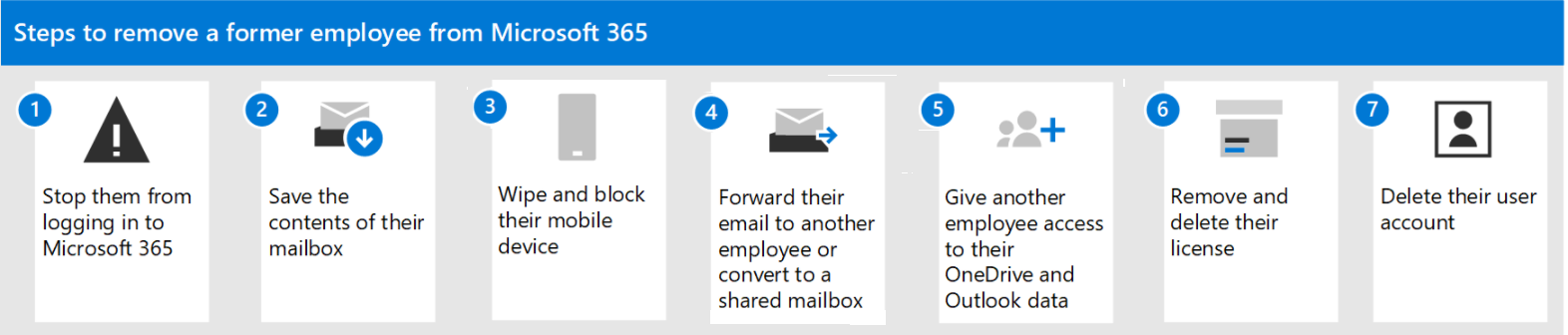
| Step | Why do this |
|---|---|
| Step 1 - Prevent a former employee from logging in and block access to Microsoft 365 services | This blocks your former employee from logging in to Microsoft 365 and prevents the person from accessing Microsoft 365 services. |
| Step 2 - Save the contents of a former employee's mailbox | This is useful for the person who is going to take over the employee's work, or if there is litigation. |
| Step 3 - Wipe and block a former employee's mobile device | Removes your business data from the phone or tablet. |
| Step 4 - Forward a former employee's email to another employee or convert to a shared mailbox | This lets you keep the former employee's email address active. If you have customers or partners still sending email to the former employee's address, this gets them to the person taking over the work. |
| Step 5 - Give another employee access to OneDrive and Outlook data | If you only remove a user's license but don't delete the account, the content in the user's OneDrive will remain accessible to you even after 30 days. Before you delete the account, you should give access of their OneDrive and Outlook to another user. After you delete an employee's account, the content in their OneDrive and Outlook is retained for 30 days. During that 30 days, however, you can restore the user's account, and gain access to their content. If you restore the user's account, the OneDrive and Outlook content will remain accessible to you even after 30 days. |
| Step 6 - Remove and delete the Microsoft 365 license from a former employee | When you remove a license, you can assign it to someone else. Or, you can delete the license so you don't pay for it until you hire another person. When you remove or delete a license, the user's old email, contacts, and calendar are retained for 30 days, then permanently deleted. If you remove or delete a license but don't delete the account, the content in the user's OneDrive will remain accessible to you even after 30 days. |
| Step 7 - Delete a former employee's user account | This removes the account from your admin center. Keeps things clean. Emails to the former employee's user account will not be received. |

No comments:
Post a Comment