Jimmy's work notes
Friday, September 8, 2023
Tuesday, July 18, 2023
Remove a former employee
Important
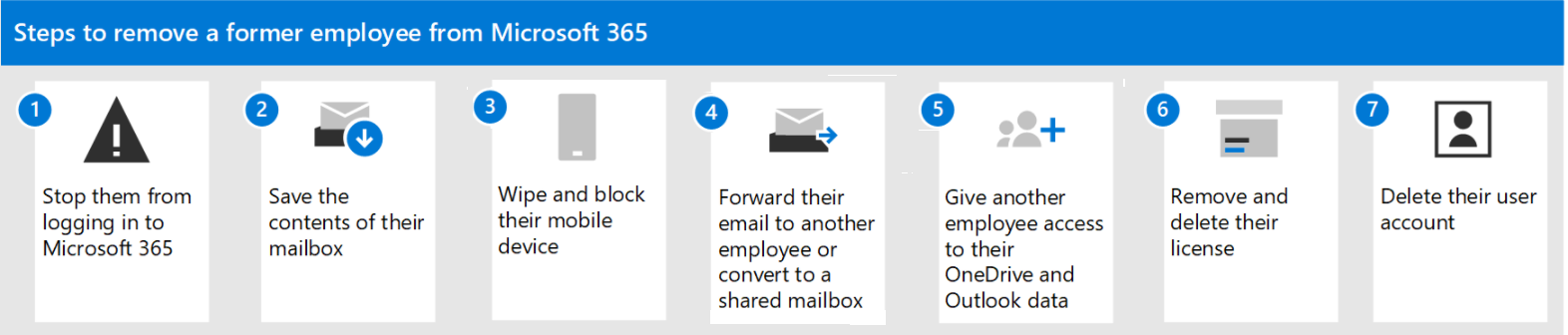
Although we've numbered the steps in this solution and you don't have to complete the solution using the exact order, we do recommend doing the steps this way.

| Step | Why do this |
|---|---|
| Step 1 - Prevent a former employee from logging in and block access to Microsoft 365 services | This blocks your former employee from logging in to Microsoft 365 and prevents the person from accessing Microsoft 365 services. |
| Step 2 - Save the contents of a former employee's mailbox | This is useful for the person who is going to take over the employee's work, or if there is litigation. |
| Step 3 - Wipe and block a former employee's mobile device | Removes your business data from the phone or tablet. |
| Step 4 - Forward a former employee's email to another employee or convert to a shared mailbox | This lets you keep the former employee's email address active. If you have customers or partners still sending email to the former employee's address, this gets them to the person taking over the work. |
| Step 5 - Give another employee access to OneDrive and Outlook data | If you only remove a user's license but don't delete the account, the content in the user's OneDrive will remain accessible to you even after 30 days. Before you delete the account, you should give access of their OneDrive and Outlook to another user. After you delete an employee's account, the content in their OneDrive and Outlook is retained for 30 days. During that 30 days, however, you can restore the user's account, and gain access to their content. If you restore the user's account, the OneDrive and Outlook content will remain accessible to you even after 30 days. |
| Step 6 - Remove and delete the Microsoft 365 license from a former employee | When you remove a license, you can assign it to someone else. Or, you can delete the license so you don't pay for it until you hire another person. When you remove or delete a license, the user's old email, contacts, and calendar are retained for 30 days, then permanently deleted. If you remove or delete a license but don't delete the account, the content in the user's OneDrive will remain accessible to you even after 30 days. |
| Step 7 - Delete a former employee's user account | This removes the account from your admin center. Keeps things clean. Emails to the former employee's user account will not be received. |
Friday, July 29, 2022
Tuesday, September 28, 2021
Microsoft 365
- Microsoft 365 for enterprise overview
https://docs.microsoft.com/en-us/microsoft-365/enterprise/network-planning-and-performance?view=o365-worldwide.
Migrate Exchange to Office 365
A good blog
Some articles:
https://docs.microsoft.com/en-us/exchange/mail-migration-jump
- Hybrid express migration
https://techcommunity.microsoft.com/t5/exchange-team-blog/new-exchange-online-migration-options/ba-p/606109
- How to: Exchange 2016 to Office 365 Hybrid Migration - Step-by-Step
https://community.spiceworks.com/how_to/177811-exchange-2016-to-office-365-hybrid-migration-step-by-step
https://practical365.com/methods-for-migrating-to-office-365/
- Preparing for Hybrid Deployment with Exchange and Office 365
https://practical365.com/preparing-for-hybrid-deployment-with-exchange-office-365/
- Creating a Hybrid Configuration with Exchange and Office 365
https://practical365.com/creating-hybrid-configuration-exchange-office-365/
- How to Set Up a Hybrid Office 365 and Migrate to Exchange Online
https://blog.netwrix.com/2019/01/03/how-to-set-up-a-hybrid-office-365-and-migrate-to-exchange-online/
https://blog.matrixpost.net/migration-from-exchange-and-skype-for-business-onpremise-to-office-365-exchange-hybrid-classic-full-step-by-step/
Tuesday, April 16, 2019
Send a schedule recurring email in Outlook
5 Steps total
Step 1: Create a new appointment
2.. In the Appointment dialog under Appointment tab. You need to:
B: Enter the recipients’ email addresses in the Location (email must be enclosed between "<>" and separated by ";")
C: Configure the Start time and the End time
D: Select the reminder under the Reminder drop-down list.
If you choose 15 minutes, it means it will remind you 15 minutes early when the email is sent.
E: Compose your Appointment body.
Step 2: Create a new category
2. When the Color Categories dialog popping up, please click New button. In the Add New Category dialog, type “Recurring Email” in the Name field; and then choose a color in the Color drop-down list. Then click OK.
3. Then you will see the “Recurring Email” category is listed out, please check the box, and then click OK button.
Step 3: Set the Recurrence
2. In the Appointment Recurrence dialog, configure your Recurrence pattern. If you need an end time, please configure it under Range of recurrence. And then click OK.
3. When it returns to the Appointment dialog, please click Save & Close button.
Step 4: Use the VBA code for sending the Schedule Recurring Email
2. Double click on Project1 > Microsoft Outlook Object > ThisOutlookSession in the left pane.
3. Copy and paste the following VBA code (below) to the VBA editor. And then click Save button.
Dim objMsg As MailItem
Dim objApp As AppointmentItem
Dim Att As Attachment
Dim tmpFolder As String
Dim filePath As String
Set objMsg = Application.CreateItem(olMailItem)
If Item.MessageClass <> "IPM.Appointment" Then
Exit Sub
End If
If Item.Categories <> "Recurring Email" Then
Exit Sub
End If
tmpFolder = Environ("TEMP")
For Each Att In Item.Attachments
filePath = tmpFolder & "\" & Att.FileName
Att.SaveAsFile (filePath)
objMsg.Attachments.Add filePath
Kill filePath
Next Att
objMsg.To = Item.Location
objMsg.Subject = Item.Subject
objMsg.Body = Item.Body
objMsg.Send
Set objMsg = Nothing
End Sub
Step 5: Enable Macros
Step 2: In the Outlook Options dialog box, click the Trust Center in the left bar.
Step 3: Click the Trust Center Settings button.
Step 4: In the Trust Center dialog box, click the Macro Settings in the left bar.
Step 5: In the Macro Settings section:
To enable all macros, please check the Enable all macros (not recommended; potentially dangerous code can run) option.
To disable all macros in your Microsoft Outlook, please uncheck the Enable all macros (not recommended; potentially dangerous code can run) option.
Step 7: Restart your Microsoft Outlook 2010 or 2013 to activate it.
Wednesday, June 1, 2016
Visual Foxpro documentation links
https://msdn.microsoft.com/en-us/library/724fd5h9.aspx
ActiveX Controls for VFP 9.0
https://msdn.microsoft.com/en-us/library/bz6d1tc4(v=vs.80).aspx
"Help files for these ActiveX controls are available when MSDN is installed."